

Bring Your AI Art to Life: A Simple Guide to Midjourney's New Video Feature
- kylixie
- Jul 28, 2025
- 6 min read
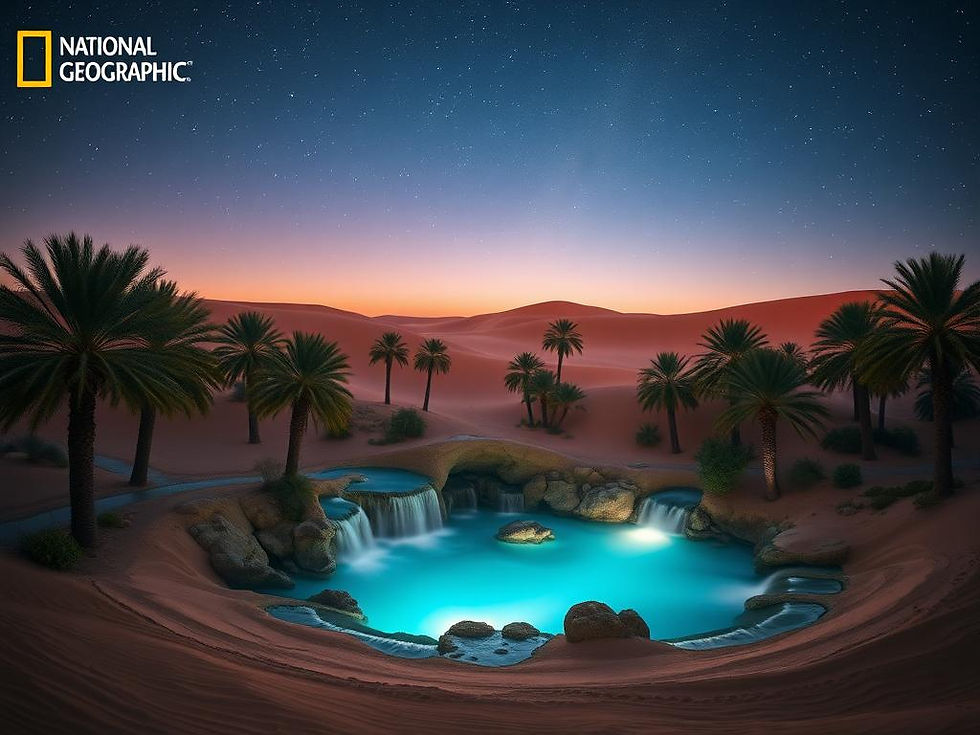
Midjourney has changed how we think about AI art by creating a video tool. It easily turns still images into smooth, animated clips. This tool does not move pixels around; it gives your art stylish motion, real visual flow, and good quality video. If you wished your AI art could move without needing video editing software, this is a big step forward.
In this guide, you will learn how to use Midjourney's video feature. We will cover how to get the best quality, make clips longer than 5 seconds, and use your own images. By the end, you will be making moving art easily.
Accessing Midjourney's Video Features
If you already use Midjourney, good news. The video feature comes with your plan. You do not need a new app or anything special. This works with the basic, pro, or mega plans. Just open Midjourney in your browser or Discord and go to your gallery.
Choose any image you made before or upload one from your computer. You will see four new buttons at the bottom right corner of the image. These are your animation tools, clearly labeled and ready to use.
Choose Your Animation Style
Each button lets you animate in a different way. Midjourney offers two main animation modes: auto and manual.
Auto Mode: Quick & Easy Motion
Auto mode is fast and simple. It uses your original image prompt or what Midjourney thinks is best. It then adds motion to match. You do not need to type anything. Click it, wait a few seconds, and your image moves. This mode is a good start if you want to see what happens or need quick results.
Manual Mode: Take Control with Prompts
Manual mode is for when you want more say in the result. When you pick a manual option, a text box appears. It asks for a new motion prompt. This lets you tell the animation what to do. You might type something like, "Camera zooms in slowly." The tool listens and follows your directions. This is where the tool gives you creative power.
Low Motion vs. High Motion
For both auto and manual modes, you can choose between low motion and high motion. These names tell you exactly what they do.
[LI]
[B]Low motion[/B] is steady and calm. It is good for a slow pan, a gentle tilt, or small character movement. It looks neat and clean.
[/LI]
[LI]
[B]High motion[/B] increases everything. The camera moves faster, objects shift more, and the animation feels more lively. It is good for bold effects or something more active. It can also get a bit busy, so check if the results look as you expected with high motion.
[/LI]
[/UL]
Generate and Get High Quality Downloads
When you click an animation button, Midjourney makes four 5-second videos. It shows them quickly as previews. These previews come in 480 pixels by default. This is fine for checking how things look, but not great for sharing.
For clear results, go to the download options. Click "download video for social media." This option gives you a full 1,080 pixels file ready for platforms like YouTube, Instagram, or TikTok. Note that there is another download button that says "download RAW video." This version is lower quality and used mostly for technical checks. To make your work look its best, always use the social media download. It has the highest quality Midjourney offers right now.
Make Your Videos Longer
What if your animation looks good, but you want it to be longer? The extend feature lets you do that. After your video is created, there is an option to extend the clip by about four more seconds. You can do this up to four times, giving you a total of 21 seconds. That is enough for a short video post or a music clip.
You can keep using the same motion prompt, or you can change it at each stage. Low or high motion still applies. This means you can mix them up with different extensions for more interesting effects. The first 5 seconds are usually smooth. When you go past 13 or 17 seconds, things might get more unusual in a good way. Backgrounds can change, characters might move slightly, and the animation becomes more abstract. Some people use these longer loops for visuals with music, meditation, or abstract stories. If you have time, try out that range.
Keep Your Projects Organized
When you work on many animations, things can become messy quickly. Midjourney helps you stay organized with favorites and folders. Under every video or image, there is a heart icon. Click it to save the result to your favorites list.
Then go to your Midjourney library on the web. Start making folders. You can make regular folders for sorting or set up saved searches. These searches sort based on prompt keywords or motion settings. If you are working on a large set of images or a big collection, folders save time and frustration. For even better organization and to manage many images and videos efficiently, consider using a tool like TitanXT's Midjourney Automation Suite. It can streamline your workflow for bigger projects.
Animate Your Own Images
Another great feature is the ability to upload your own images. You are not limited to what you have made in Midjourney. You can drag any image into the animate area and use it as the base for a video. This works well if you have edited an image in Photoshop or made it somewhere else but want to bring it to life.
Once your image is uploaded, you get the same choices: auto or manual, low or high motion. For the best results, use manual mode. Write a prompt that says what the subject should do. If your image has a clear subject, like a person, animal, or character, Midjourney usually tracks it well. The motion feels more connected to the original image.
If you are on the pro plan, you can also turn on stealth mode. This keeps your uploads and outputs private. They will not appear in the public feed. This is good if you are working on client work or surprise releases.
Best Styles for Video Animation
Midjourney’s video tool works very well with certain art styles. Think of cartoon art, pixel designs, anime, oil paintings, or anything surreal. These styles animate more smoothly because they do not need perfect realism. The motion looks creative, not odd.
If you have been using Midjourney to make flat scenes with strong colors or bold designs, those can now become looping moving art pieces. This also works in abstract mode. If you animate an image and then extend it without new prompts, Midjourney starts to add its own motion. Shapes stretch and shift naturally. Colors drift across the frame. It feels like a dream sequence or a visualizer without you needing to direct it. Artists and musicians are already using this for loops, stage visuals, or digital art. No extra editing software. Just extend and let it change.
Tips for Better Manual Prompts
Here is a quick tip for using manual mode: be exact. "Camera moves right" works better than "camera moves." Words like tilt, zoom, rotate, pan, spin, slow, fast, all affect the final result. If it does not work the first time, change the words slightly and try again. You are not writing movie scripts here, just short, clear directions. Think of it like giving simple stage directions to an AI performer who wants to please you, but does not always understand unspoken hints. If you are looking to manage many prompts and fine-tune your creative output, tools like TitanXT's Midjourney Automation Suite can help you organize and apply your best prompt strategies efficiently.
If you have been making AI art for a while, this feature gives you a whole new way to show your work. If you are new to it, you will learn fast. It is much easier than full video software and much faster than trying to make something move by hand.
So, you access Midjourney's new video tool from any image, new or old. You pick auto for quick results or manual for custom motion. You choose low or high motion based on the effect you want. You get four preview clips, then download the best one in 1080 pixels using the "download for social media" option. You can extend each video by 4 seconds up to 21 seconds total. You can upload your own images and use the same features. And you can keep everything in order using hearts and folders.
Go to your Midjourney gallery, click "animate," and try it out. If you are making many videos or need to manage a large amount of creative output, the Midjourney Automation Suite from TitanXT can greatly improve your workflow and project management.



Comments