
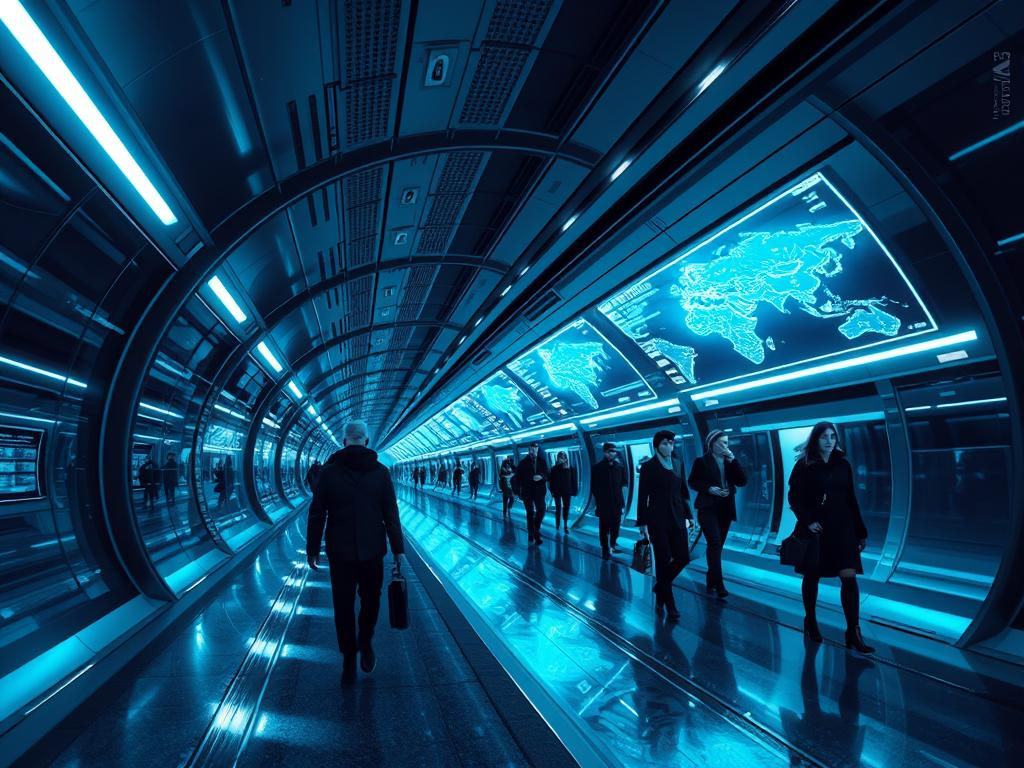
Create Standout Hero Sections with Midjourney and Figma
- kylixie
- May 25, 2025
- 3 min read

Want to make your designs pop on social media? Combining Midjourney's image power with Figma's design tools lets you create impressive hero sections that grab attention. This guide walks you through a simple process to get started.
Starting Your Design in Figma
Your design journey begins in Figma. Set up a dark hero section layout. Add a placeholder for a screen, like a MacBook. This gives your design structure.
You will need some assets. Find free logos from places like Logo Ipsum. Look for images that fit your theme, maybe technology or smart home pictures. Pick a visual that works well with your idea.
Generating the Perfect Image with Midjourney
Now, use Midjourney to create a background image. Write a prompt that describes the kind of visual you need. Make sure to ask for a horizontal image with a 16x9 aspect ratio. This size works well for web sections.
While Midjourney creates your image, you can keep working in Figma. Add your logo, some menu links, and a button for people to click (a call-to-action). Arrange these elements. Adjust their size and spacing until they look balanced and appealing.
Getting the right image from Midjourney might take a few tries or prompt adjustments. For help managing multiple ideas and generations easily, check out the TitanXT Midjourney Automation Suite. It helps streamline your workflow.
Bringing the Image and Layout Together
Once Midjourney delivers your image, place it in your Figma layout. Now add your main headline text. Use effects like gradients or overlays on the text. This makes sure the text stands out against the background image and is easy to read.
Add another call-to-action button if needed. You can also add icons or small symbols to guide the viewer's eye.
Adding Details and Variations
To make your design look even better, try different things. Play with variations of your layout. Add overlays on top of your image. Experiment with effects like glows or different gradients on your text elements.
Many designers find managing different versions time-consuming. Automating parts of your Midjourney work can free up time for creativity. Consider how tools like the TitanXT Midjourney Automation Suite can help you handle multiple image ideas and variations efficiently.
A "Featured In" section can add trust. Place logos of media outlets in your design. Adjust the space between them and line them up nicely for a clean, professional finish.
Prepping for Social Media
If you want to share your design on social media platforms like Twitter or Dribbble, set your canvas to a size like 1600x1200 pixels. This size works well for these sites.
Add small details like subtle noise or shapes (sometimes called 'blobs') to give your design interest. Position your elements creatively. Change backgrounds or use overlays to give your post a unique vibe.
Preparing images for different platforms can be repetitive. Automating your image generation and preparation can save significant time, allowing you to focus on design ideas. Explore how the TitanXT Midjourney Automation Suite can simplify this process for you.
Final Touches for Sharing
For platforms that showcase design work, like Dribbble, make sure your final image is perfectly sized. Add any last noise or layered effects. This process helps you create hero sections and visuals that look professional. Designs like these are more likely to get positive reactions and attention online.
With Midjourney and Figma, creating impressive web hero sections is possible. Put in some effort and creativity, and you can make designs that stand out and get noticed.



Comments