
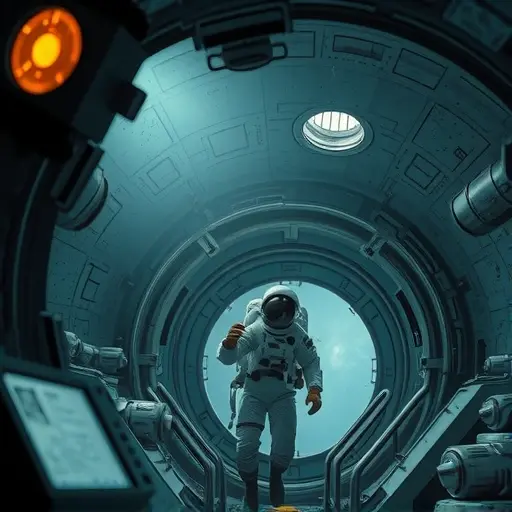
Creating Consistent Characters with Midjourney
- kylixie
- Apr 25, 2025
- 2 min read
Want to use the same characters across multiple Midjourney images? This guide shows you how to make consistent characters for games, comics, videos, or just putting your character in different scenes.
Creating Character Assets
Creating consistent characters in Midjourney is all about using the right keywords in your prompts. Here are some examples:
Pixel Art Characters
To create a pixel art character, describe the character you want and use the terms "front and side pose." For example:
"pixel art character, front and side pose"
Zombie Character Sheet
To create a character sheet with different views, use terms like "full body different sides and shots." For example:
"zombie, full body different sides and shots"
Character Turnaround
Another helpful term is "character sheet backside and front" to get a turnaround view. For example:
"Spaceman character, character sheet backside and front"
Generating Portraits
For portraits, describe your character and specify a "six image set." For example:
"[Character description], six image set"
Feel like your creative workflow is a little slow? Speed things up with the Midjourney Automation Suite from TitanXT.
Expanding and Refining Images
Once you have initial images, you can expand them to get more options:
Click the image you want to expand.
Click "editor."
Drag it out to the side.
Submit to generate another option in the same style.
Upscaling and Removing Backgrounds
To refine your character, upscale the image and remove the background:
Upscale the image for higher resolution.
Make the background white for easier removal.
Save the image to your computer.
Use a background remover tool like Creative Fabrica's background remover.
Double-check the transparency and correct any mistakes using an image editor.
Putting a Character in a Scene
To put your character in different scenes, use the image as a reference:
Generate your character using a detailed prompt.
Drag the character image to the text bar in Midjourney.
Click the character reference icon (the one on the left).
Type your scene prompt, like "a girl walking down the street, children's book style."
Using Style References
To maintain a consistent style, use a style reference image:
Drag the style reference image to the text bar.
Click the style reference icon (the middle one).
Combine character and style references in your prompt.
Changing Character Clothes and Accessories
[P]By default, Midjourney tries to match the clothes and accessories of the reference character. To change this, use the `--cw` or `--character weight` parameter. The default value is 100. Lowering the value allows you to change the character's clothes and accessories.</P]
[P]Example:</P]
"[Character reference] wearing a red shirt and blue shorts --cw 20"
Want to take full control of your Midjourney workflow? Check out the Midjourney Automation Suite from TitanXT and see what you've been missing!
Conclusion
With these tips, you can create consistent characters and put them in various scenes in Midjourney. Experiment with different prompts, references, and the `--cw` parameter to achieve the desired results.
Ready to do more with Midjourney? Explore the possibilities with the Midjourney Automation Suite from TitanXT. Start creating today!



Comments