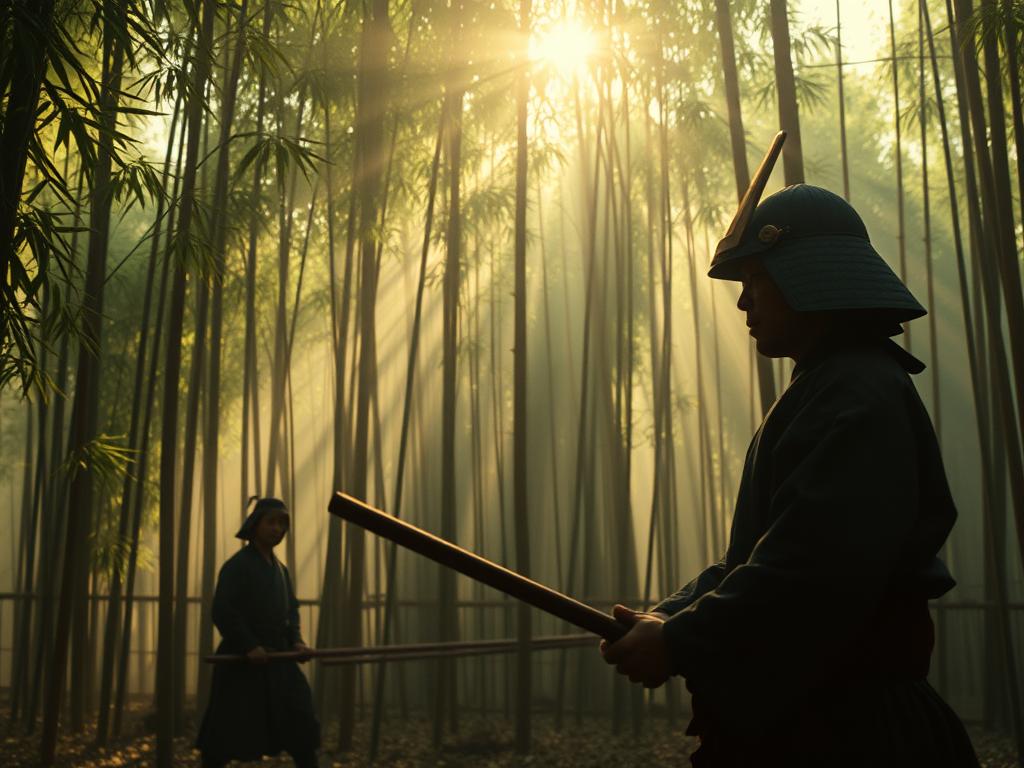
If you’re making mood boards, here are some tips and tricks to get the best results.
Basic Use and Quick Fixes
Using the Correct Code
Sometimes when sharing a mood board code, the usual `–profile` parameter doesn’t work. If this happens, try using `–dp` instead. It seems to work more reliably in some cases.
Turning Off Personalization for a Prompt
If you have personalization turned on by default in your Midjourney settings, but want to run a specific prompt without it, you can do that. Just add `–dp none` at the end of your prompt. This lets you test the regular Midjourney algorithm.
Testing Your Mood Board Style
Use Void Prompts
To see the pure style of your mood board without the influence of specific words, try a “void prompt.” This means using symbols instead of words. Two quotation marks (`””`) work well, but any symbol can be used. This technique is great for testing the style itself, not the subject.
The Role of the Stylize Parameter
Normally, the `–stylize` parameter controls how much Midjourney’s general aesthetic affects your image. But when personalization (mood boards) is on, `–stylize` now controls how much your mood board influences the image.
If you want your mood board’s style to have a strong effect, increase the stylize value. A value like `–s 1000` will push the style hard. The default is 100 for a reason though. Be aware that very high values might make Midjourney ignore your prompt’s subject more.
Try Style Raw
Experiment with your mood boards using [`–style raw`](https://docs.midjourney.com/docs/style-raw). The results might be similar to the default style, but there can be interesting differences. Sometimes, style raw helps your mood board’s style come through in a different way, leading to results you might prefer.
Building Your Mood Board
Image Limits and Color
You can add up to 100 images to a mood board. You don’t need to fill it completely, but the number and variety of images impact the results.
Fewer images, especially if they have similar colors, can lead to generations that reuse those same colors frequently.
More images with greater color variety will help Midjourney generate images with a broader color palette.
Color consistency isn’t always a problem, though. You can adjust colors later in your prompts or by changing the stylize value (see below).
Using Stylize to Control Color (Lower Values)
If your mood board has a strong, dominant color palette (like many images with autumn colors), Midjourney might stick to those colors even if you ask for something else in your prompt.
In this case, lower the `–stylize` value. Try a range like 40 to 60. This tells Midjourney to pay less attention to the mood board’s overall style (including color) and more attention to your specific prompt instructions.
Negative Prompting
If your mood board has colors you don’t want in a specific generation, you can try using negative prompting. For example, `–no green` might help remove unwanted green tones dominant in your board.
workflows for Improving Your Board
Adding Successful Images Back
A good way to refine your mood board is to add the successful generations you create using it back into the board. This helps reinforce styles and colors you like and can improve color diversity over time.
It helps to have two tabs open in your browser: one for generating images and one for managing your mood board. You can quickly view and add images.
Building a Board from Past Work
Another method is to look through your past generations in the Midjourney gallery. find images you like and copy their prompts.
Then, use that prompt in the search bar on the mood board creation page. This finds all generations from that prompt, making it easy to select images for your new board.
Exploring Advanced Techniques
Mix Aspect Ratios
Include images with different aspect ratios (square, wide, vertical) in your mood board. This gives Midjourney more visual data to draw from when you later generate images using that board in various ratios, potentially leading to more interesting compositions.
Generating Images with Text
This is a specific, powerful technique. If you create a mood board using images that contain text you were happy with (even if the text wasn’t perfect), you might find it easier to then generate *new* images that also have text when using that board.
By training the mood board on images with existing text elements, it seems to prime Midjourney to include text in subsequent generations more consistently when you prompt for it. This can be a game-changer for projects requiring text overlays.
Using Remix and Style References
To make images in a consistent style, you can use the Remix feature. Generate an initial image. Then, click Remix and change only the subject, keeping other parameters the same. This helps maintain consistency.
For even stronger consistency, you can use the *original* remixed image as a style reference ([`–sref`]) when running the remix. This hardcore technique can produce very consistent results, which you can then add to a mood board to create a powerful tool for a specific style.
Managing these advanced workflows and ensuring consistent results across many generations can take time. For users looking to streamline their creative process and apply consistent styles or parameters without manual effort, consider exploring automation tools like the
Streamlining Your Workflow with Automation
Custom Shortcuts for Testing
If you test your mood boards the same way repeatedly (e.g., with the same prompt, parameters, and aspect ratios), you can save a huge amount of time by creating a custom shortcut.
This is done using the `/prefer option set` command in Discord (hopefully available on the website soon).
First, you can create a shortcut for common parameters or actions. For example, define a shortcut like `–all` that expands into a permutation of aspect ratios:
[LI]`/prefer option set option: all value: –ar 16:9 –ar 9:16 –ar 1:1`[/LI]
Then, create another shortcut that combines a void prompt, parameter values, and your ratio shortcut. For example:
[LI]`/prefer option set option: mbtest value: “” –stylize 400 –all`[/LI]
Now, to test a mood board with a specific void prompt, stylize value, and three aspect ratios, you just type `–mbtest` at the end of your prompt.
This shortcut automates the process you would normally do manually. Think of how much time this could save if you test boards often! Tools like the
Conclusion
Midjourney mood boards are a great way to guide the AI towards your desired style. By understanding how parameters like stylize work with personalization, managing your image selection, and adopting efficient workflows (including potentially using custom shortcuts or specialized Midjourney automation tools), you can create more consistent and appealing images for your projects.
Keep experimenting with these tips, and you’ll be well on your way to mastering Midjourney mood boards.
Do This Locally with Logen
Skip the subscription. Generate images like these on your own GPU — private, unlimited, no cloud dependency.
Midjourney vs Logen
| Feature | Midjourney | Logen |
|---|---|---|
| Cost | $10-60/mo | Free |
| Privacy | Cloud (images stored) | 100% local |
| Generations | Limited by plan | Unlimited |
| Internet Required | Always | No |
| Custom Models | No | Yes (any ComfyUI model) |
| GPU Required | No (cloud) | Yes (local) |
| Ease of Use | Discord bot | Desktop app |