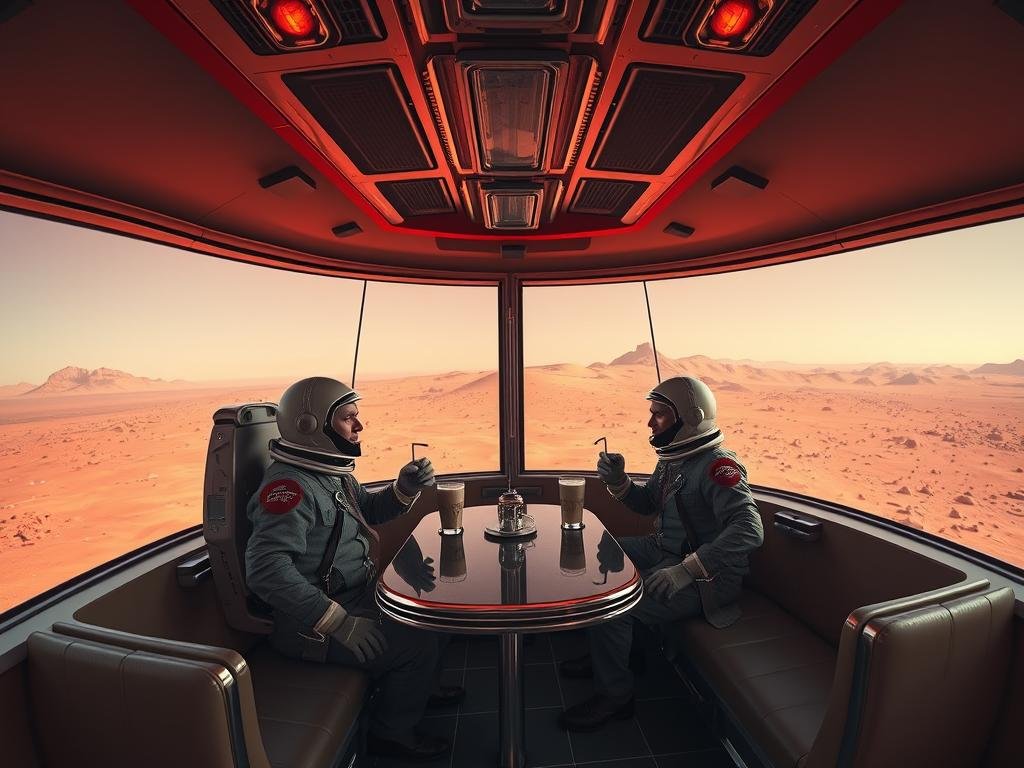
Making Room for Text in Your Midjourney Art
One common need is adding text or copy to an image later. You might think you can just tell Midjourney to “leave space for lettering.” Unfortunately, Midjourney often misunderstands layout requests. It might interpret “space” literally, adding planets (space rocks), or scatter random letters across the image instead of creating a blank area.
Think Creatively About Empty Areas
Since Midjourney doesn’t understand “negative space” commands well, you need to describe the area you want to be empty. Imagine the scene and where the blank spot should be. Then, describe that specific part of the image using words like “empty aisle,” “blank wall,” or “minimalist area where copy can go.” This guides Midjourney on what should fill that part of the frame (or rather, what *shouldn’t* fill it).
This can be tricky. Midjourney might still try to add detail to the area you want blank, especially in newer versions.
Use Prompts That Imply Text Layout
A more effective way to get space for text is to ask for a specific format that naturally includes text areas. Prompts like “advertising template,” “stationary template,” “poster,” or “magazine cover” tend to generate images with built-in sections suitable for text. You can add details like “blank isolated white space on the right” to further refine it. This approach often results in better blending and more usable layouts than trying to force space into a general scene.
Getting the perfect layout often takes trial and error, sometimes generating multiple versions or using remix. Managing many different prompts and images can be challenging if you’re creating many variations for a project. Check out the
Adding the Text Itself
Once you have the image with space, adding the text precisely is the next step. Midjourney currently struggles with adding text accurately as an overlay or controlling specific fonts. Direct prompts like “overlay typography reads summer travel” often fail or integrate the text poorly into the image rather than placing it clearly on the blank space.
The most reliable way to add specific text with chosen fonts and perfect placement is by using external graphic design software like Adobe Express or Photoshop after generating the image in Midjourney. While you *can* try bringing the image with text back into Midjourney for “retexturing” to blend it more, it’s not ideal for simple text overlays.
Composing Scenes by Layering Elements
Another challenge is creating complex scenes by combining elements that might not appear together naturally or need to be shown with specific relationships, like seeing something *through* another object.
Generating Components Separately
You can try generating parts of the scene individually. For example, to create a view through fur coats into a snowy forest, you might first prompt for “fur coats hang in a row. In the background a snowy pine tree forest glimpse.” This focuses just on the view. Getting this part right might take several tries and prompt adjustments.
[H3]Attempting to Add Structures Around Scenes[/H2]
After getting the core view (like the forest through coats), the next step is to add surrounding structures, like the wardrobe frame. Midjourney’s `zoom out` feature can expand the scene, but it tends to add more of the existing elements (more coats, more forest) rather than entirely new structures like a wardrobe frame.
[H3]Using the Editor and Layers (Experimental)[/H2]
Midjourney’s built-in editor allows adding layers. You could try generating the surrounding element separately (e.g., “an open empty ornate wardrobe”). Then, upload your core image (the view through coats), go into the editor, add the empty wardrobe image as a layer, and try to blend them. This method is promising for complex compositions but is currently quite buggy and doesn’t always blend the layers smoothly or align them correctly.
Creating compositions like these often involves manual steps outside of Midjourney in image editing software. Managing the different images and steps for complex projects is key. Tools designed to streamline AI image workflows, like the
Handling Specific Subject Challenges (Angel Wings Back View)
Sometimes the trouble is just getting specific elements right, like positioning body parts or accessories correctly from a certain angle. For example, getting symmetrical wings placed correctly from a full back view of an angel.
Sometimes simply being more descriptive helps. Adding terms like “symmetrical feathered wings” and specifying the perspective like “full back view” in the prompt can significantly improve results compared to just asking for a “winged woman in black dress.”
Successful Midjourney Workflows Combine Tools
As you can see, getting very specific layouts, adding text precisely, or creating complex layered compositions in Midjourney isn’t always a one-prompt job. Achieving your vision often requires a workflow that might include:
Carefully crafting initial prompts to guide Midjourney towards a desired structure or subject.
Carefully crafting initial prompts to guide Midjourney towards a desired structure or subject.
Using features like pan, zoom, or remix to refine generated images.
Using features like pan, zoom, or remix to refine generated images.
Imagining and describing specific areas for elements like text.
Imagining and describing specific areas for elements like text.
Leveraging formats like “templates” or “posters” that expect specific layouts.
Leveraging formats like “templates” or “posters” that expect specific layouts.
Using external graphic design software for precise text placement and layering.
Using external graphic design software for precise text placement and layering.
Experimenting with Midjourney’s editor for blending, though it’s still evolving.
Experimenting with Midjourney’s editor for blending, though it’s still evolving.
Thinking about the final use case (like a magazine cover) *before* you start prompting can be a great strategy, especially if you know text will be needed. Don’t assume a general image can easily be adapted later for complex additions. Understanding these workflows and when to use outside tools is crucial for creating polished results.
Managing these multi-step creative processes can be time-consuming. Explore the
Do This Locally with Logen
Skip the subscription. Generate images like these on your own GPU — private, unlimited, no cloud dependency.
Midjourney vs Logen
| Feature | Midjourney | Logen |
|---|---|---|
| Cost | $10-60/mo | Free |
| Privacy | Cloud (images stored) | 100% local |
| Generations | Limited by plan | Unlimited |
| Internet Required | Always | No |
| Custom Models | No | Yes (any ComfyUI model) |
| GPU Required | No (cloud) | Yes (local) |
| Ease of Use | Discord bot | Desktop app |