

How to Give Your Midjourney Images New Backgrounds and Textures
- kylixie
- May 12, 2025
- 3 min read
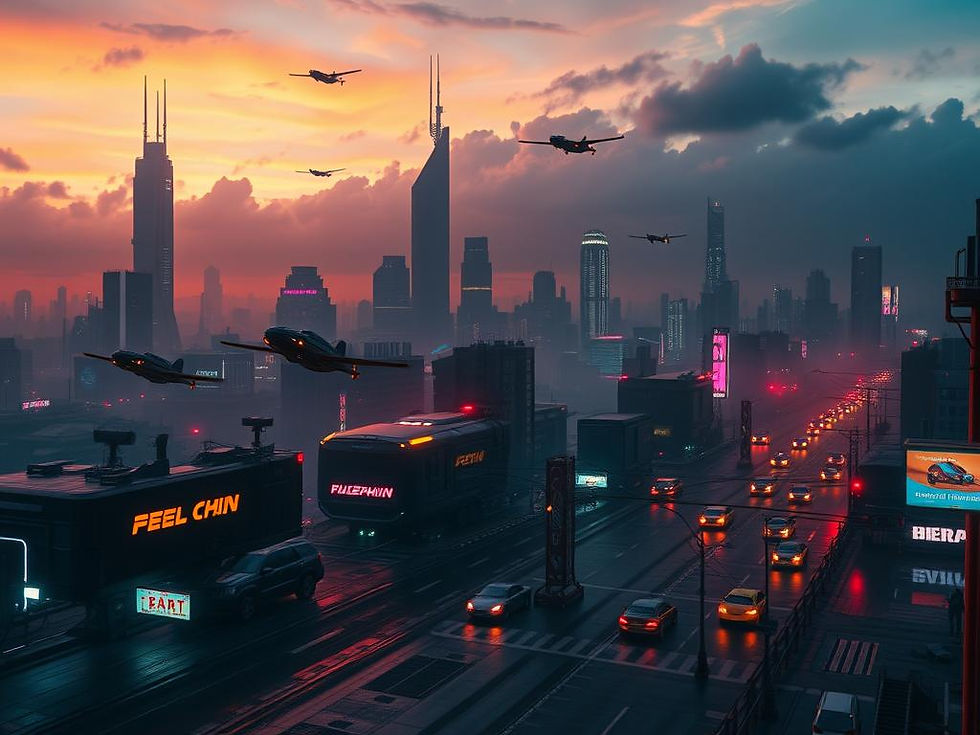
Want to change how your Midjourney images look? Maybe you want to place a photo subject in a completely different scene or give an existing image a new texture, like turning it into a statue. Midjourney has tools that help you do this easily. This guide walks you through the steps used to transform a regular image into an underwater monument made of stone.
Getting Started: Preparing Your Image
To start, you need the image you want to change. Sometimes, it helps to separate the main subject from its original background. You can do this in an image editor like Photoshop. However, if you don't have editing software, don't worry. Midjourney can often handle images without this step, although isolating the subject first can sometimes give cleaner results.
Using the Midjourney Website for Edits
The video creator prefers using the Midjourney website for editing, finding it user-friendly. On the website, you'll find an "Edit" section. This is where you'll upload your image.
Applying a New Texture
Once your image is uploaded, look for the "Retexture" tab. This is where you tell Midjourney what new texture or style you want for the image subject.
You need a prompt to describe the desired texture. For the underwater monument example, the goal was to turn a person into an ancient stone statue. A prompt describing "an old statue in the shape of a woman with a microphone, the statue is ancient and has cracks" was used. Many users find it helpful to use AI text generators to help write or refine prompts, especially for specific effects or styles. Always make sure your prompt request is in English for Midjourney.
When generating, you can adjust settings like "Stylization" (how creative Midjourney gets) and the Midjourney Version (like 6.1). Setting the mode to "RAW" often gives a less "AI-looking" result, more like a photograph or natural image.
Did you know you can streamline your Midjourney process? Tools like the Midjourney Automation Suite from TitanXT can help manage your creations, test prompts efficiently, and save time, letting you focus on refining your vision.
Generating the Initial Texture
After setting up your prompt and settings, submit the job. Midjourney will generate variations of your image with the new texture applied. Review the options and select the one you like best. The goal here is mainly to get the *subject* looking right with the desired texture.
Adding the Background Scene
After you have the textured image version you like, you'll go back to the Midjourney "Edit" area with that selected image. This time, use the "Erase" tool to remove parts of the image that you don't want in the final scene. For placing the statue underwater, you'd erase the original background, leaving only the statue.
Now, you need a prompt for the *new* background. For the underwater scene, the prompt was updated to include "supplement with an underwater scenario. The statue should be in the sea, on the seabed. The water should be clear and turquoise like in the Caribbean. There should be some colorful fish."
Submit this new prompt with the edited (erased background) image. Midjourney will generate images where the textured subject is placed in the new background scene described in the prompt.
RefINING and Iterating
Sometimes the first attempt doesn't turn out exactly as you envisioned. This is normal when working with AI. The underwater scene might look too plain or "sterile," as mentioned in the video.
This is where iteration comes in. Go back and adjust your background prompt. You might add details like "algae and coral," or ask for the statue to "look old and ancient" again to ensure consistency with the environment. You can regenerate the background scene multiple times until you get a result you love.
Experimentation is key. If one approach doesn't work, try slightly different wording or settings. Working with AI like Midjourney often involves trying many paths to reach the best result. Consider exploring the Midjourney Automation Suite to help manage these iterations and compare results more easily.
Beyond Static Images (Optional)
Once you have your final image, you can take it further. Tools like Kling AI (a video generator) can turn your static Midjourney image into a short video clip, adding camera movement, swimming fish, or other dynamic elements to your scene. This adds another layer of realism and visual appeal to your creation.
Conclusion: Transform Your Visions
Giving your Midjourney images new textures and backgrounds is a creative process that involves mixing the "Retexture" function with background editing and prompting. It takes a little practice and iteration, but it lets you place subjects in imaginative new settings or change their appearance entirely. Try it out with your own images and see what unique scenes you can build!
Ready to take your Midjourney creations to the next level and manage your projects more effectively? Check out the Midjourney Automation Suite from TitanXT.



Comments